

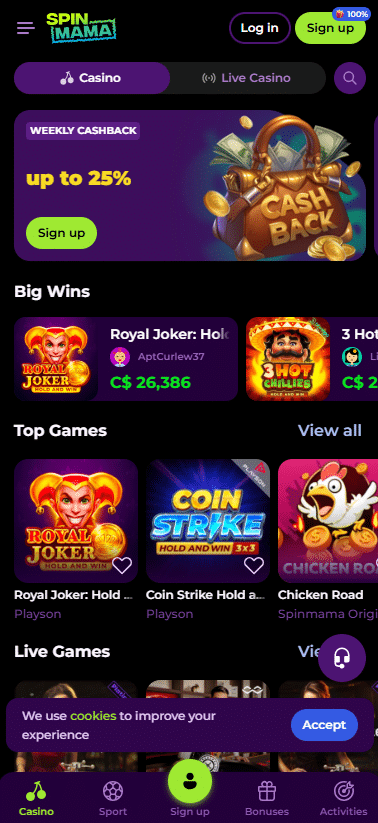
Swiss users often face device-specific issues when downloading and operating the Spinmama Casino mobile app https://sspinmama.com/de-ch/app/. This guide addresses the most common problems, from compatibility checks to network settings, and details how to solve them without losing progress or funds.
Troubleshooting Login Failures and 2FA Issues
Login problems often stem from cached credentials that no longer match server records. Begin by selecting “Forgot password” on the login screen; the reset link arrives within two minutes if your email address is correctly entered. After resetting, clear the app cache in your device settings to delete stored tokens that could conflict with the new credentials.
Two-factor authentication codes are time-sensitive. Ensure your phone’s clock is set to automatic network time; a deviation of more than thirty seconds can cause codes to become invalid. If you use an authenticator app, verify that it is synced with the same time source. Persistent failures may suggest that your account has been temporarily locked after multiple incorrect attempts; wait fifteen minutes before trying again.
Biometric login can also fail after an operating-system update. Re-register your fingerprint or Face ID inside the app’s security menu. The stored template is device-specific and does not migrate if you move the app to a new handset.
Managing Data Usage and Performance on Mobile Networks
Live dealer streams use between 1.5 and 2.5 MB per minute, depending on video quality. To track usage, enter the app’s settings menu and turn on the data-saver toggle, which lowers stream resolution and deactivates background animations. This option is useful when traveling near borders where Swiss and EU roaming rates are in effect.
Wi-Fi connections sometimes drop during large file downloads. If the app notices an interrupted update, it resumes from the last verified byte rather than starting over. You can also schedule updates to take place only when connected to unmetered networks by turning on the “Update on Wi-Fi only” preference in the same menu.
Maximizing Battery Life During Extended Play

Extended sessions can consume battery quickly because the screen stays at full brightness and the processor processes real-time graphics. Reducing screen brightness to 50 percent and closing background applications extends playtime by roughly thirty percent. The app also provides a “Battery Saver” mode that limits frame rate at 30 fps, sufficient for most slot games.
Installing via the App Store on iPhones and iPads
iOS users are able to get the Spinmama Casino app through the App Store by searching for the exact brand name. The listing displays the current version number and release date, allowing you to ensure you are getting the most recent build. During installation, the system may request your Apple ID password or Face ID confirmation; this is typical and does not suggest a security problem.
After installation ends, open the app and grant permission for push notifications. These alerts notify you of time-limited promotions and deposit matches that are available only inside the mobile interface. If the app does not appear in search results, modify your App Store region to Switzerland and check that your payment method matches the store’s requirements.
Some users report that the app icon stays greyed out after download. Restarting the device clears the installation flag and allows the icon activate. If the App Store displays a “Not Available in Your Country” notice, confirm that your Apple ID country setting indicates Switzerland; a mismatched region blocks the purchase even when the app itself is free.
Granting Necessary Access for Full Functionality
The Spinmama Casino app needs several permissions to function correctly. Storage access allows the app capture screenshots of winning spins and store cached game assets, reducing data usage on subsequent launches. Location permission is required only if you join in geo-specific tournaments; you can refuse it and still reach all other features.
Camera permission permits QR-code login on shared computers. Microphone access supports live dealer tables that provide voice chat. Each permission can be switched later in the device settings menu under “Apps → Spinmama → Permissions.” Deactivating a permission mid-session may cause the app to restart, so change these settings while the app is closed.
Notification permission manages bonus reminders. Without it, the app cannot present time-sensitive deposit matches that show up only in the mobile lobby. Turn on the toggle if you lose a promotion window; the setting remains app updates and does not need re-login.
Frequently Asked Questions
Can I utilize the Spinmama Casino app on a rooted Android device?
The app runs an integrity check during launch. Root detection might cause a warning, but play is still feasible if you disable root temporarily or use Magisk hide modules. Check the latest terms on the site before proceeding.
Why does the app request location access in Switzerland?
Location data verifies that you are within the permitted region for certain tournaments. The app does not store coordinates after the session ends, and you can deny the permission without losing other functions.
How much storage space does the app require?
Initial installation uses about 85 MB. Additional games are downloaded on demand, each ranging from 20 MB to 120 MB. You can delete individual titles from within the app to free space.
Does there exist a way to recover a deleted APK file?
If you deleted the original APK, go back to the download page and acquire the file again. Your login credentials stay valid; no new registration is necessary.
Is it possible for multiple users share one device for separate accounts?
Yes, but each account must log out completely before the next user logs in. The app stores only one active session token at a time to prevent conflicts.
What happens if I change my phone number linked to two-factor authentication?
Update the number through the account settings menu while still logged in on the old device. If access is lost, reach out to support with your account ID and government-issued identification for manual verification.
Does the app support external controllers for live casino games?
Bluetooth controllers are recognized for navigation, but game rules demand on-screen taps for betting confirmation. The feature is optional and disabled by default in the accessibility menu.
Upgrading the App and Dealing with Version Mismatches
Spinmama publishes updates each 4-6 weeks to patch security vulnerabilities and introduce new games. The app checks for updates on launch and displays a banner if a newer version is available. Selecting the banner directs you to the download page or App Store listing, based on your platform.
Delaying updates for more than two release cycles can cause login errors because older builds include expired security certificates. If you prefer manual control, turn off automatic updates in your device settings and rather check the official site once a month. Always keep a copy of your current APK on Android before setting up a new version in case you need to revert.
Some users store the previous APK on external storage. Change the name of the file with the build date so you can recognize it quickly if a rollback becomes necessary. The app will not run an APK signed with an expired certificate, so keep only the most recent working build.
Confirming Device Compatibility Before Installation
Before installing the Spinmama Casino app, verify that your phone fulfills the listed system specifications. Android devices need version 7.0 or later, while iOS users must have at least iOS 12. The app is compatible with both ARM64 and x86 chips, but older tablets with limited RAM may experience lag during live dealer rounds. Reviewing these requirements early avoids wasted time on failed installs or repeated crashes.
Spinmama also provides supported screen dimensions starting at 720 × 1280 pixels. If your display falls below this threshold, the interface may look cramped or buttons may overlap. Users with foldable phones should check that the app scales correctly when toggling between folded and unfolded modes, as some Android skins modify aspect ratios automatically.
Memory allocation also plays a role. The app allocates 1.2 GB of RAM during live dealer broadcasts. Phones with 4 GB total RAM can run the app, yet background processes such as email sync may vie for resources and cause frame loss. Stopping those tasks before launch ensures the stream smooth. Battery health above 85 percent further minimizes unexpected turnoffs during extended gaming periods.
Obtaining the APK Securely on Android Devices
Google Play does not have the Spinmama Casino app, so Android users need to get the APK straight from the official site. On the download page, choose the version that corresponds to your processor architecture to avoid installation blocks. After the file downloads, open your device settings, navigate to security, and enable “Install from unknown sources” for the browser you used.
Before starting the installer, compare the file checksum listed on the website with the value displayed in your file manager. A mismatch suggests corruption during transfer. Once checked, continue with installation. If the system alerts about app permissions, check each request; the app demands storage access to save game history and notification access for bonus alerts.
Users on older Android skins such as MIUI or ColorOS sometimes encounter an extra confirmation screen that stops the installer. Allowing the permission once stores the choice for future updates. If the download stalls at 99 percent, switch from mobile data to Wi-Fi; the site limits large files on cellular connections to prevent carrier surcharges.
Dealing with Android Version-Specific Errors
Users on Android 12 and 13 sometimes encounter a “Parse Error” message. This takes place when the downloaded APK is built for an older API level than the operating system expects. Downloading again the latest APK from the site usually fixes the issue, because the file is updated for newer SDK requirements.
Wiping Cache Before Reinstall
If the parse error remains, clear the cache partition through recovery mode. Restart the phone while holding volume-down and power, choose “Wipe cache partition,” then turn on normally. This step deletes temporary files that may disrupt the installer without removing personal data.
Fixing Crashes, Stalls, and Unexpected-Exit Issues
Sudden closures commonly stem from faulty cache files or conflicts with other running applications. Initiate by force-quitting the app through device options, then wipe its cache. If the problem remains, delete and set up the app; your account funds and game record remain preserved on the server, so no funds are missing during this procedure.
Handsets with below 3 GB of RAM may struggle when multiple tables are active at the same time. Shutting idle tables or changing to a less demanding game genre such as standard slots often restores performance. Logging the specific time and game title when a crash takes place helps support staff determine whether the problem is device-specific or server-related.
- Terminate the app via device settings.
- Clear cache and data for Spinmama.
- Restart the handset.
- Set up only if the above steps do not work.